
Public beta · Cosentino's pharmacy team
Count pills with the camera. Get a number in seconds.
Rx Counter is an iPhone app that uses on-device computer vision to count pills the moment you snap a photo. Optional inventory mode reuses the same camera for the annual C2-5 count.
Requires an iPhone running iOS 17 or later.
The headline feature: counting
This part you can use today, on its own, with no setup.
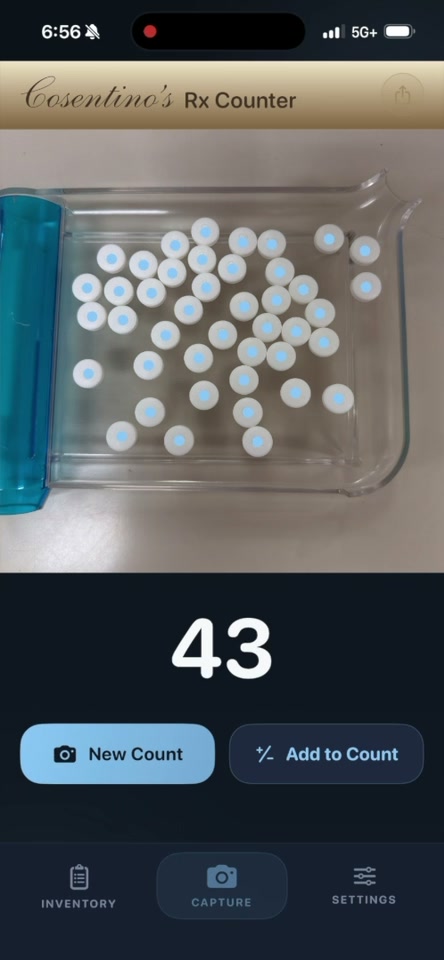
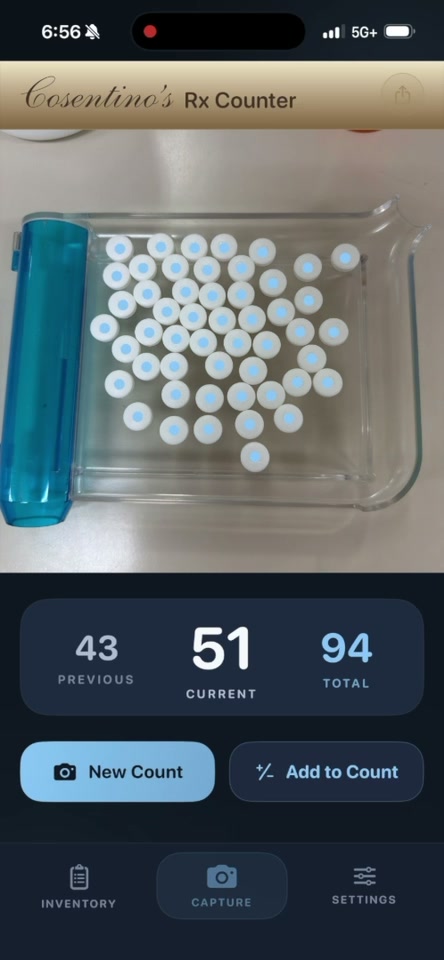
Open the app, frame the pills, tap the shutter. The on-device model marks each pill with a dot, then shows the count in big, unambiguous type. Save or share the annotated image with one tap.
- Need to count more than fits in one shot? Tap Add to Count and keep going — the running tally adds up across captures.
- No internet connection required for counting. Everything runs on the phone.
Inventory mode for the annual C2-5 count
If you opt in, the same camera speeds up the controlled-substance inventory.
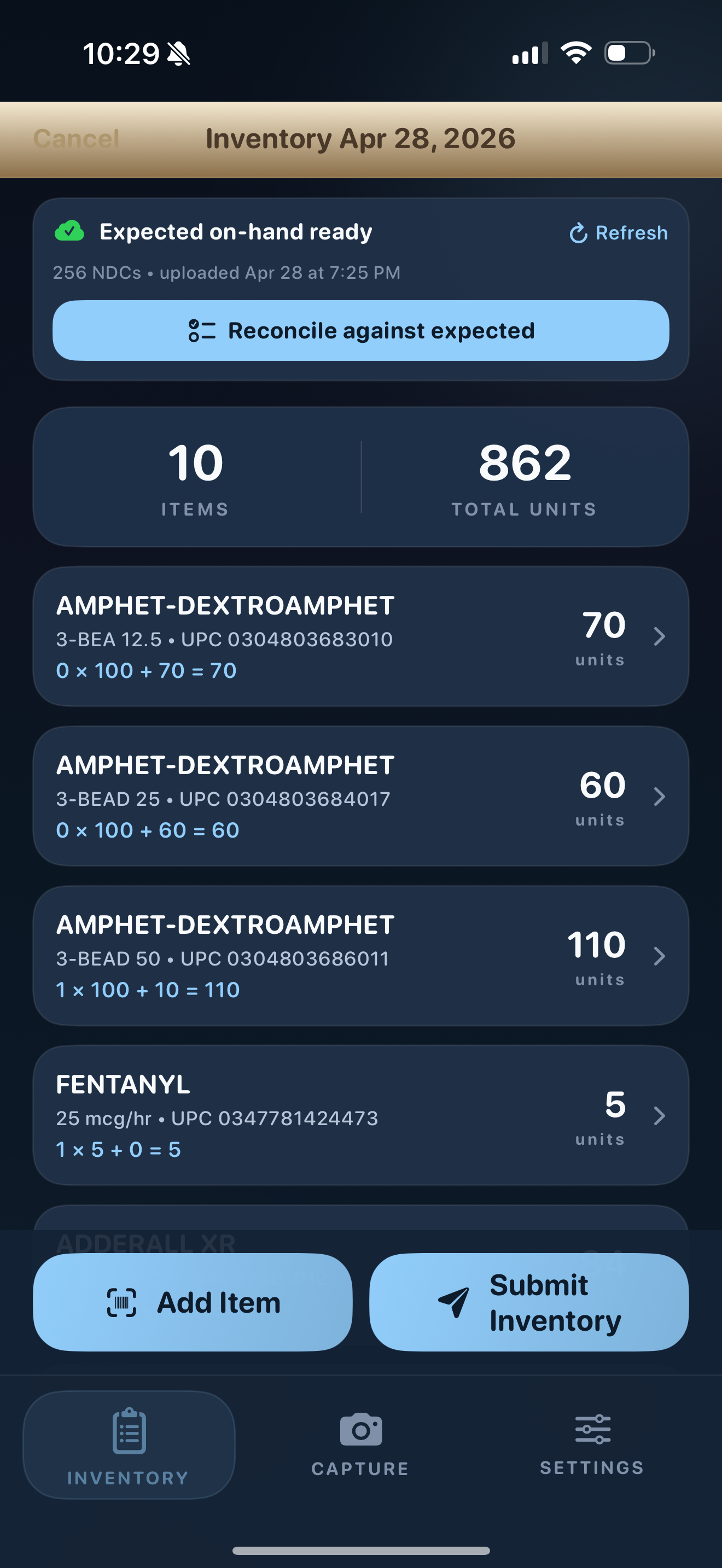
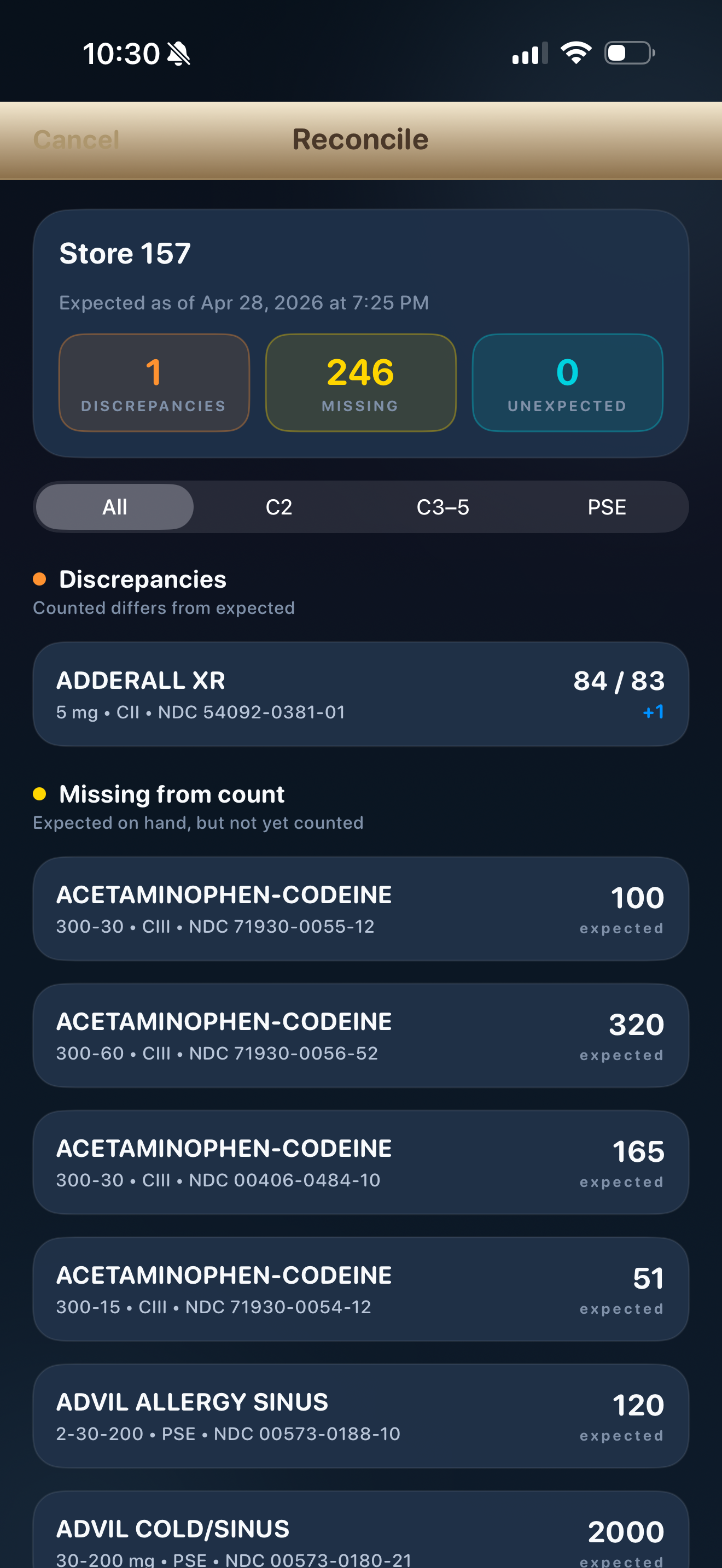
Start a session, scan a barcode, count what's in the bottle, move to the next one. As you go, the app reconciles your physical count against the expected on-hand uploaded from EnterpriseRx, so discrepancies surface in real time instead of at the end.
- UPC-A barcode scan or NDC lookup against a bundled drug catalog.
- Math built in —
packages × per-package + loose, shown line by line. - Reconcile screen flags discrepancies, missing items, and unexpected items as you go.
- Exports a PDF of the session and submits it back to the office automatically.
- Skip it entirely if you only want the counting feature.
The annual inventory workflow, end to end
Three steps. Only relevant if you're using inventory mode.
-
1
Run Inventory Valuation in EnterpriseRx
From EnterpriseRx, run the Inventory Valuation report filtered to schedules C2 through C5 only. Export to a file (CSV).
-
2
Upload the file at cs-inventory.cdskc.me
Visit cs-inventory.cdskc.me. Your browser will ask for a username and password — use these:
UsernamePasswordThe credentials are shared across the pharmacy team — please don't post them outside of internal channels.
-
3
Run the inventory session in the app
In Rx Counter, open Inventory, start a session for your store, and the app will pull the expected on-hand from your upload. Scan, count, reconcile. When you're done, submit. Done.
iPhone only, for now
The beta is iPhone-only (iOS 17+). If there's enough interest from Android users, the next step is a universal web version that runs in any modern phone browser — let me know if that would be useful for you.
Bug? Idea? "This is broken"?
This is a beta — tell me what's not working and what you'd want next.
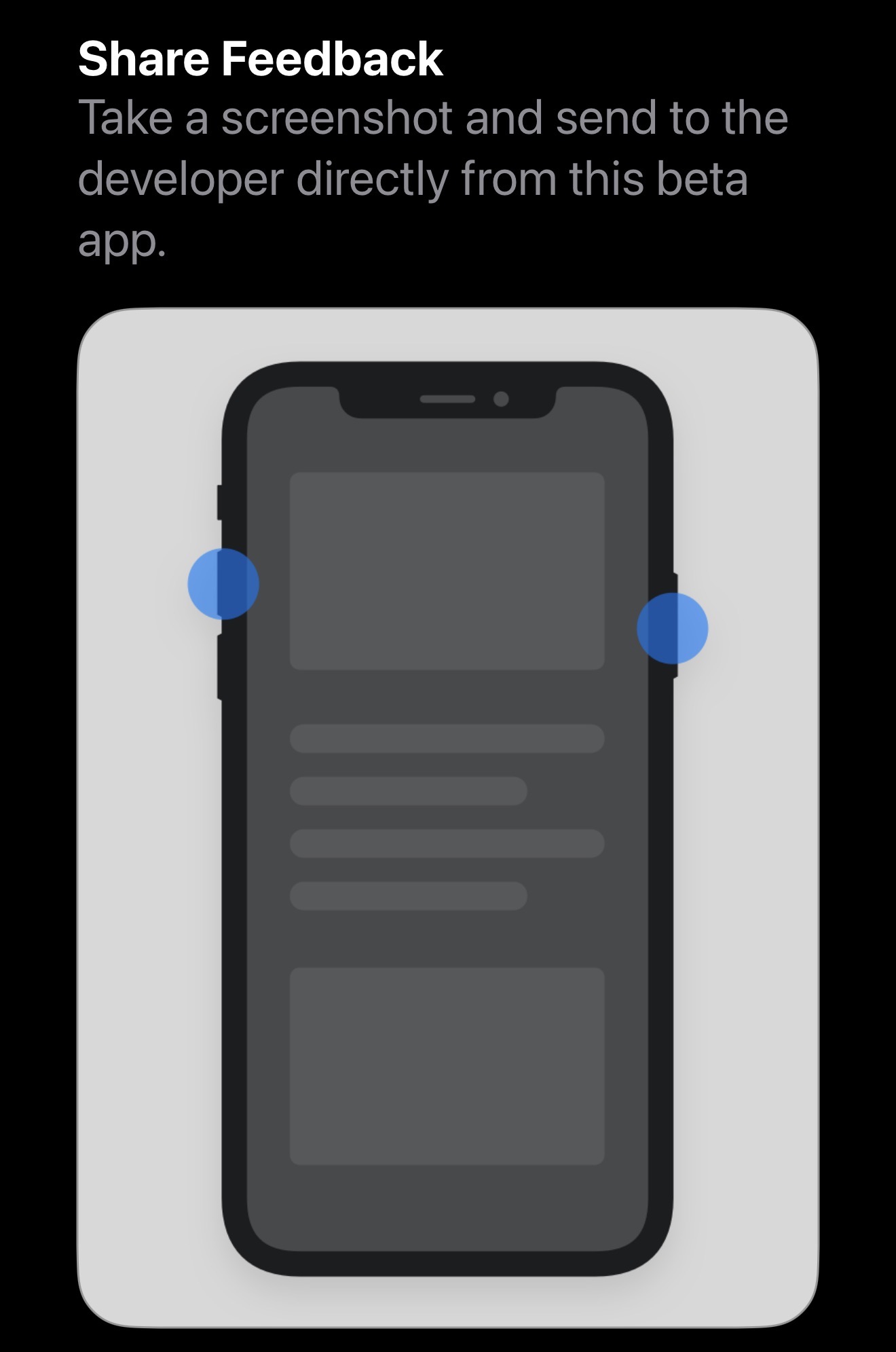
The app has a built-in shortcut: take a screenshot anywhere in Rx Counter and a Share Feedback sheet pops up with options to send the screenshot directly to me. Use it whenever something looks wrong, weird, or just isn't doing what you'd expect.
You can also just reach out the normal way:
Ready when you are
Tap below on your iPhone to install the beta through TestFlight.
Install Rx Counter via TestFlightYou'll need the free TestFlight app from Apple. The link opens TestFlight automatically and shows the install button for Rx Counter.